
김산나
[멋쟁이사자처럼부트캠프 유니티 게임 개발 7기] 2026년 2월 6일 회고록 - 공격, 산테비스탄, 커서 변경, 포스트 프로세싱, 슬로우, 적 인식 및 유도까지 본문
[멋쟁이사자처럼부트캠프 유니티 게임 개발 7기] 2026년 2월 6일 회고록 - 공격, 산테비스탄, 커서 변경, 포스트 프로세싱, 슬로우, 적 인식 및 유도까지
김산나 2026. 2. 6. 23:112026_02_06 강의 요약본
너무 많은 걸 배웠어...
오늘 기록할 게 적었다면 구매한 에셋에 대한 글을 쓰고 싶었지만, 레전드 고봉밥 이슈로 주말로 미뤄지게 되었다.
1. 공격
- 공격 모션
- 공격 검기 이펙트
- 공격 레이저 이펙트
카타나 제로는 클릭으로 공격을 하고, 검기 이펙트, 레이저 이펙트가 동시에 나간다.
업데이트 메서드에 내용을 추가한다.
// 왼쪽 마우스 버튼 클릭
        if(Input.GetMouseButtonDown(0))
        {
            panimator.SetTrigger("Attack");
            Instantiate(laser, transform.position, Quaternion.identity);
        }
애니메이션 파라미터 조절, 레이저 소환 코드가 들어있다. 검기(Slash)는 애니메이션에서 직접 호출하도록 설정할 예정이다.

애니메이션 파라미터는 이렇게 설정했다.
Any State에서 play_attack애니메이션은 "Attack"이라는 Trigger 타입 파라미터가 작동해야 1회 실행한다.
그 다음 바로 player로 돌아간다. (player은 이외 모든 상태와 연결되기 때문에 자연스럽게 작동한다.)
이번에는 laser에 달린 코드를 알아보자.
using System.Data;
using UnityEngine;

public class Hit_Laser : MonoBehaviour
{
    [SerializeField]
    private float Speed = 50f;
    Vector2 MousePos;
    Transform tr;
    Vector3 dir;

    float angle;
    Vector3 dirNo;


    void Start()
    {

        tr = GameObject.FindGameObjectWithTag("Player").GetComponent<Transform>();
        MousePos = Input.mousePosition;
        MousePos = Camera.main.ScreenToWorldPoint(MousePos);
        Vector3 Pos = new Vector3(MousePos.x, MousePos.y, 0);
        dir = Pos - tr.position; //마우스 - 플레이어 포지션 빼면 마우스를 바라보는 벡터

        //바라보는 각도구하기
        angle = Mathf.Atan2(dir.y, dir.x) * Mathf.Rad2Deg;


        //normalized 단위벡터
        dirNo = new Vector3(dir.x, dir.y, 0).normalized;

        Destroy(gameObject, 4f);
    }


    void Update()
    {
        //회전적용
        transform.rotation = Quaternion.Euler(0f, 0f, angle);


        //이동
        transform.position += dirNo * Speed * Time.deltaTime;
    }
}
tr은 플레이어의 위치를 구하는 것이다.
다음은 마우스의 위치를 구하는 코드.
	MousePos = Input.mousePosition;
        MousePos = Camera.main.ScreenToWorldPoint(MousePos);
일단 마우스 포지션을 받고, 그 포지션을 메인 카메라를 기준으로 변경해 주는 것이다.
이 작업을 해야 정확한 포지션을 받을 수 있다.
	Vector3 Pos = new Vector3(MousePos.x, MousePos.y, 0);
        dir = Pos - tr.position; //마우스 - 플레이어 포지션 빼면 마우스를 바라보는 벡터
그리고 그 마우스의 좌표값을 vector3값으로 변환해서 dir에 플레이어위치 -> 마우스 클릭 위치로 향하는 벡터값을 저장한다.
	//바라보는 각도구하기
        angle = Mathf.Atan2(dir.y, dir.x) * Mathf.Rad2Deg;
그 다음, 레이저가 해당 벡터방향에 맞는 쪽으로 고개를 돌리도록 각도를 세팅하여 저장한다.
	//normalized 단위벡터
        dirNo = new Vector3(dir.x, dir.y, 0).normalized;
그리고 dirNo에는 정규화된 dir값을 저장한다.
마지막으로 업데이트 메서드에 아래 코드를 넣는다.
	//회전적용
        transform.rotation = Quaternion.Euler(0f, 0f, angle);


        //이동
        transform.position += dirNo * Speed * Time.deltaTime;
angle에 맞게 회전을 시키고, dirNo의 벡터값만큼 포지션을 이동시킨다.
이제 플레이어가 레이저를 소환하기만 해도 알아서 이 로직대로 움직이는 것이다.
이번에는 검기를 날려보자.
플레이어 코드에 AttSlash코드를 작성한다.
	public void AttSlash()
    {
        if (sp.flipX == false)
        {
            prig2D.AddForce(Vector2.right * power, ForceMode2D.Impulse);
            GameObject go = Instantiate(slash, transform.position, Quaternion.identity);
            go.GetComponent<SpriteRenderer>().flipX = sp.flipX;

            Destroy(go, 0.3f);
        }
        else
        {
            prig2D.AddForce(Vector2.left * power, ForceMode2D.Impulse);
            GameObject go = Instantiate(slash, transform.position, Quaternion.identity);
            go.GetComponent<SpriteRenderer>().flipX = sp.flipX;
            Destroy(go, 0.3f);

        }

    }
AddForce를 해주는 이유는 총의 반동처럼 검의 타격력?을 보여주면 찰져서 넣었다고 한다.
slash 오브젝트를 생성하고, 플레이어의 보는 방향 (sp.flipX)값에 맞게 돌려준다.
마지막엔 자동 삭제 기능을 넣었다.
이 메서드를

한 이쯤 붙여주면 된다.
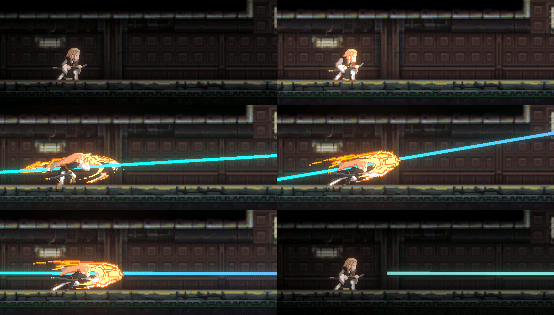
잘 작동한다.
(당연히 콜라이더 / 오브젝트 연결 기타 등등 기본 세팅은 했을 거라고 믿고 생략)
2. 산테비스탄

엣지러너로 유명해진 효과인데, 사실 카타나제로가 먼저 야무지게 사용했다.

화려하다...
이 연출을 모작해보자.
플레이어 코드로 가자.
    public GameObject shadow;
    List<GameObject> sh = new List<GameObject>();
이런 변수를 추가한다. shadow는 잔상 프리팹을 담을 변수, 리스트는 이 잔상들의 집합이다.
리스트의 잔상을 여러 개 사용해 잔상 효과를 만드는 방식이다.
void KeyInput()
    {
        dir.x = Input.GetAxisRaw("Horizontal");
        if(dir.x <0)
        {
            sp.flipX = true;
            panimator.SetBool("Run", !isWall); // 벽에 붙어있지 않을 때만 Run 재생

            isRight = -1;

            // 그림자 뒤집기
            for(int i = 0; i <sh.Count; i++)
            {
                sh[i].GetComponent<SpriteRenderer>().flipX = sp.flipX;
            }
        }
        else if(dir.x >0)
        {
            sp.flipX = false;
            panimator.SetBool("Run", !isWall); // 벽에 붙어있지 않을 때만 Run 재생

            isRight = 1;
        }
        else if(dir.x == 0)
        {
            panimator.SetBool("Run", false);

            for(int i = 0; i<sh.Count; i++)
            {
                Destroy(sh[i]); // 리스트 내부 게임 오브젝트 제거
                sh.RemoveAt(i); // 리스트에서 제거
            }
        }

  ...
KeyInput으로 플레이어가 이동하는 방향에 맞게 뒤집어주고, 멈출 때 삭제하는 방식이다.
using UnityEngine;

public class pShadow : MonoBehaviour
{
    private GameObject player;
    public float TwSpeed = 10;

    void Update()
    {
        player = GameObject.FindGameObjectWithTag("Player");
        transform.position = Vector3.Lerp(transform.position, player.transform.position, TwSpeed * Time.deltaTime);
    }

}
잔상에 붙일 코드이다.
transform.position = Vector3.Lerp(transform.position, player.transform.position, TwSpeed * Time.deltaTime);
매 프레임마다 플레이어의 위치를 가져오고, 그 위치까지 자연스럽게 따라가는 코드이다.
그리고 다시 플레이어 코드
public void RunShadow()
 {
     if(sh.Count<6)
     {
         GameObject go = Instantiate(shadow, transform.position, Quaternion.identity);
         go.GetComponent<pShadow>().TwSpeed = 10 - sh.Count;
         sh.Add(go);
     }
 }
잔상을 생성하는 코드를 작성하고, 달리는 애니메이션에 띄엄띄엄 붙여주면 된다.
3. 커서 변경
https://sanna820.tistory.com/33
[멋쟁이사자처럼부트캠프 유니티 게임 개발 7기] 2026년 1월 28일 회고록 - 1945 조이스틱 (터치 인터
2026_01_28 강의 요약본 오늘은 수업이 짧았다.오후에는 게임 기획 시간을 주셧기 때문이다. 안드로이드 빌드를 목표로 만든 프로젝트인만큼 조작을 터치패드 조이스틱으로 바꿀 필요가 있었다.htt
sanna820.tistory.com
2번 참고. 내용 동일함.
다만 추가하자면

이미지 Texture Type을 Cursor로 바꿔주면 좋다. (뭐가 좋은지는 모르겠으나 웬만하면 바꾸고 적용하자)
4. 포스트 프로세싱, 슬로우 모드
말만 들으면 뭔가 싶지만, 그냥 고급 카메라 필터 기능같은 거라고 생각하면 좋다.
예전에 수업 과제로 사용했었는데, 시야각이나 색감, 그리고 먼지효과나 픽셀화 등 다양한 걸 할 수 있었던 거로 기억한다.

Post Processing을 설치한다. (뭣같은 인증서 오류때문에 이전 버전 사용 중이나 문제 없음)
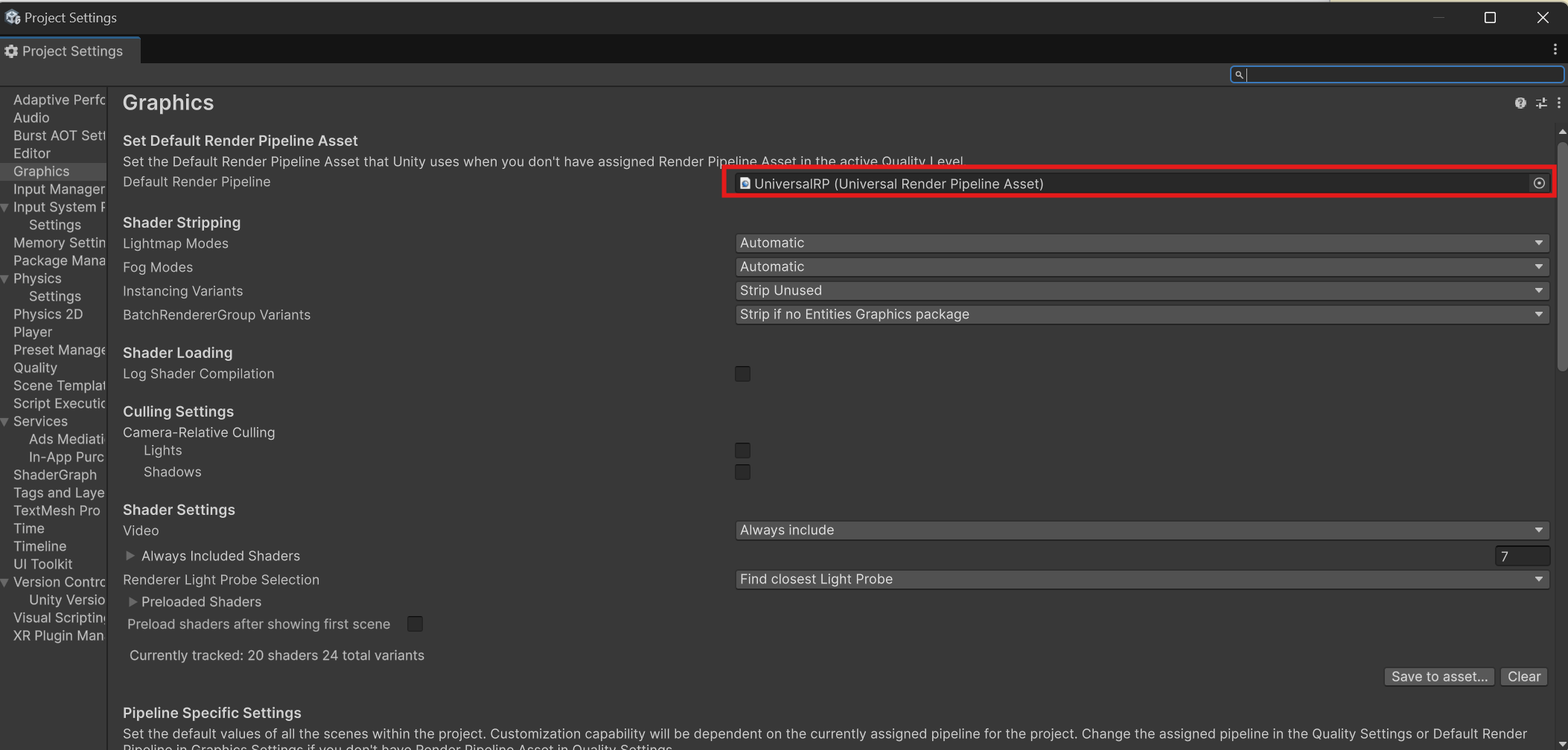
Project Setting > Graphics > Default Render Pipeline > UniversalRP 선택

메인 카메라에서 포스트 프로세싱 체크

Volume > Global Volume 오브젝트 생성.
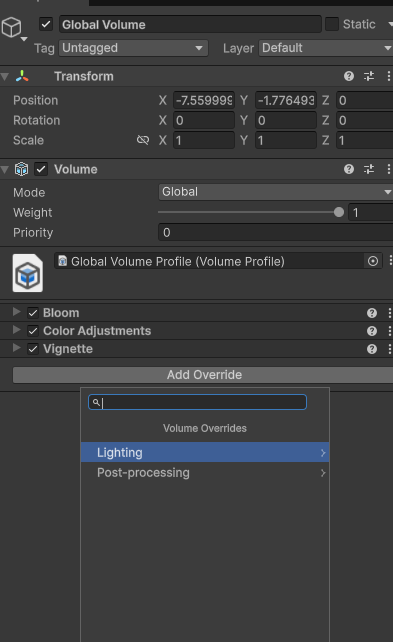
볼륨 컴포넌트에서 Add Override, Bloom, Color Adjustments, Vignette 선택
그리고 다 펼쳐서

체크 다 해둔다.(뭘 쓸지 모르기 때문)
본인이 쓰고 싶은 것만 체크해도 무관.
All버튼 누르면 다켜짐

함 이것저것 만져본다. 원하는 느낌대로 ㄱㄱ
이거 당연히 코드로도 제어가 가능한데, 그 방법을 알아본다.
shift를 누르면 슬로우모드를 적용하고, 카메라 효과를 주려고 한다.

빈 오브젝트 생성 (TimeController)
스크립트를 하나 새로 만든다.
using UnityEngine;
using UnityEngine.Rendering;
using UnityEngine.Rendering.Universal;

public class TimeController : MonoBehaviour
{
    private static TimeController instance;
    public static TimeController Instance => instance;

    public float slowMotionTimeScale = 0.3f;
    public float slowMotionDuration = 0.5f;

    private float slowMotionTimer;
    public bool isSlowMotion { get; private set; }

    [Header("Post Processing (URP)")]
    public Volume volume;

    private Vignette vignette;
    private ColorAdjustments colorAdjustments;

    private void Awake()
    {
        if (instance == null)
            instance = this;
    }

    void Start()
    {
        // URP Volume에서 효과 가져오기
        volume.profile.TryGet(out vignette);
        volume.profile.TryGet(out colorAdjustments);
    }

    void Update()
    {
        if (isSlowMotion)
        {
            slowMotionTimer += Time.unscaledDeltaTime;

            if (slowMotionTimer >= slowMotionDuration)
            {
                SetSlowMotion(false);
            }
        }
    }

    public float GetTimeScale()
    {
        return isSlowMotion ? slowMotionTimeScale : 1f;
    }

    public void SetSlowMotion(bool slow)
    {
        isSlowMotion = slow;

        if (slow)
        {
            slowMotionTimer = 0f;

            Time.timeScale = slowMotionTimeScale;
            Time.fixedDeltaTime = 0.02f * Time.timeScale;

            // 🎬 슬로우 모션 시 연출
            vignette.intensity.value = 0.6f;

            colorAdjustments.saturation.value = -40f;
            colorAdjustments.contrast.value = 20f;
            colorAdjustments.postExposure.value = -1f;
        }
        else
        {
            Time.timeScale = 1f;
            Time.fixedDeltaTime = 0.02f;

            // 효과 원복
            vignette.intensity.value = 0f;

            colorAdjustments.saturation.value = 0f;
            colorAdjustments.contrast.value = 0f;
            colorAdjustments.postExposure.value = 0f;
        }
    }
}
겁나 길다.
천천히 한 줄씩 보자.
    private static TimeController instance;
    public static TimeController Instance => instance;
싱글톤 선언문.
    public float slowMotionTimeScale = 0.3f;
    public float slowMotionDuration = 0.5f;

    private float slowMotionTimer;
    public bool isSlowMotion { get; private set; }
0.3배속으로 0.5초간 유지하게 세팅한듯?
타이머는 시간 카운터, 슬로우모션인지 아닌지 확인하는 변수도 넣었다.
[Header("Post Processing (URP)")]
    public Volume volume;

    private Vignette vignette;
    private ColorAdjustments colorAdjustments;
아까 추가한 기능 중 슬로우 모드에 사용할 것은 이렇게 두 개이다.
private void Awake()
    {
        if (instance == null)
            instance = this;
    }
싱글톤 준비운동
void Start()
    {
        // URP Volume에서 효과 가져오기
        volume.profile.TryGet(out vignette);
        volume.profile.TryGet(out colorAdjustments);
    }
게임 시작 시 두 가지 효과의 정보값을 가져온다.
void Update()
    {
        if (isSlowMotion)
        {
            slowMotionTimer += Time.unscaledDeltaTime;

            if (slowMotionTimer >= slowMotionDuration)
            {
                SetSlowMotion(false);
            }
        }
    }
업데이트마다 슬로우모션이 on이 됐는지 확인하고, 타이머를 잰다.
그리고 타이머가 끝나면 슬로우를 종료.
public float GetTimeScale()
    {
        return isSlowMotion ? slowMotionTimeScale : 1f;
    }
슬로우 모션이 true면 몇초 남았는지를 뱉고, 아니면 1f를 뱉는다.
이거 어디에 쓰냐면
void Update()
    {
        float timeScale = TimeController.Instance.GetTimeScale();
        transform.Translate(direction * speed * Time.deltaTime* timeScale);
    }
중복으로 슬로우가 적용되어야 하는 다른 오브젝트에 부착한다.
가령 저건 몬스터 투사체인데, 투사체가 이중으로 슬로우에 빠지면 더 극적인 연출(?)이 가능하다.
public void SetSlowMotion(bool slow)
    {
        isSlowMotion = slow;

        if (slow)
        {
            slowMotionTimer = 0f;

            Time.timeScale = slowMotionTimeScale;
            Time.fixedDeltaTime = 0.02f * Time.timeScale;

            // 🎬 슬로우 모션 시 연출
            vignette.intensity.value = 0.6f;

            colorAdjustments.saturation.value = -40f;
            colorAdjustments.contrast.value = 20f;
            colorAdjustments.postExposure.value = -1f;
        }
        else
        {
            Time.timeScale = 1f;
            Time.fixedDeltaTime = 0.02f;

            // 효과 원복
            vignette.intensity.value = 0f;

            colorAdjustments.saturation.value = 0f;
            colorAdjustments.contrast.value = 0f;
            colorAdjustments.postExposure.value = 0f;
        }
    }
이게 가장 중요한 코드이다.
isSlowMotion값을 받고, true인 경우 타이머 리셋 -> 전역 시간 속도 Timescale배속 -> FixedUpdate 속도도 같이 맞춰주기
그리고 화면 효과...
저 이름 잘 기억해두고 효과을 보자.
대충 그 효과를 적용해 주는 것이다.

직접 이것저것 만져보고 코드로 제어할 수 있다.
아무튼 false인 경우엔 시간들과 화면 제어를 초기화한다.
5. 적 캐릭터 구현
적 캐릭터의 인식 범위를 지정하고,
플레이어가 그 범위에 들어오면 플레이어 방향으로 몸을 돌린다.
그리고 플레이어를 향해 지속적으로 공격을 한다.
구현해 보자.
<적 코드 전문>
using UnityEngine;

public class ShootingEnemy : MonoBehaviour
{
    [Header("적 캐릭터 속성")]
    public float detectionRange = 10f;  // 플레이어를 감지할 수 있는 거리
    public float shootingInterval = 2f; // 공격 타이머 시작값
    public GameObject missilePrefab;    // 발사 미사일 프리팹

    [Header("참조 컴포넌트")]
    public Transform firepoint; // 미사일 발사 위치
    private Transform player;   // 플레이어 위치 정보
    private float shootTimeer;  // 발사 타이머
    private SpriteRenderer spr; // 스프라이트 방향 전환을 위한 컴포넌트
    Animator animator;


    void Start()
    {
        player = GameObject.FindGameObjectWithTag("Player").transform;
        spr = GetComponent<SpriteRenderer>();
        shootTimeer = shootingInterval;
        animator = GetComponent<Animator>();
    }

    void Update()
    {
        if(player == null) return;

        float distanceToPlayer = Vector2.Distance(transform.position, player.position);

        if(distanceToPlayer <= detectionRange)
        {
            // 플레이어 방향으로 스프라이트 회전
            spr.flipX = (player.position.x < transform.position.x);

            // 미사일 발사 로직
            shootTimeer -= Time.deltaTime; // 타이머 감소
            if(shootTimeer <= 0)
            {
                Shoot();
                shootTimeer = shootingInterval;
            }
        }
    }

    void Shoot()
    {
        //미사일 생성
        GameObject missile = Instantiate(missilePrefab, firepoint.position, Quaternion.identity);


        //플레이어 방향으로 발사 방향 설정
        // Vector2 direction = (player.position - firepoint.position).normalized;
        // missile.GetComponent<EnemyMissile>().SetDirection(direction);
        // missile.GetComponent<SpriteRenderer>().flipX = (player.position.x < transform.position.x);


        Vector2 direction = (player.position - firepoint.position).normalized;
        missile.GetComponent<EnemyMissile>().SetDirection(direction);

        // 2D 환경에 맞게 미사일 회전 (플레이어를 바라보게 함)
        float angle = Mathf.Atan2(direction.y, direction.x) * Mathf.Rad2Deg;
        missile.transform.rotation = Quaternion.AngleAxis(angle, Vector3.forward);

        // 중요: 이미 회전했으므로, 미사일의 로컬 기준 '오른쪽(앞쪽)'으로 이동하도록 설정
        missile.GetComponent<EnemyMissile>().SetDirection(Vector2.right);

    }

     //디버깅용 기즈모
    private void OnDrawGizmosSelected()
    {
        Gizmos.color = Color.red;
        Gizmos.DrawWireSphere(transform.position, detectionRange);
    }


    //적 캐릭터 사망 애니메이션 재생
    public void PlayDeathAnimation()
    {
        animator.SetBool("Death", true);
        //선택사항: 애니메이션 종료후 오브젝트 제거를 위해
        Destroy(gameObject, animator.GetCurrentAnimatorStateInfo(0).length);
    }

}
내용이 긴데, 사실 이전에 배운 내용과 겹치는 부분이 꽤 있어서 쉽다.
[Header("적 캐릭터 속성")]
    public float detectionRange = 10f;  // 플레이어를 감지할 수 있는 거리
    public float shootingInterval = 2f; // 공격 타이머 시작값
    public GameObject missilePrefab;    // 발사 미사일 프리팹
감지 범위, 공격 타이머 초기값, 발사할 오브젝트 변수이다.
[Header("참조 컴포넌트")]
    public Transform firepoint; // 미사일 발사 위치
    private Transform player;   // 플레이어 위치 정보
    private float shootTimeer;  // 발사 타이머
    private SpriteRenderer spr; // 스프라이트 방향 전환을 위한 컴포넌트
    Animator animator;
참조할 컴포넌트 목록이다.

슈팅게임과 마찬가지로 적 캐릭터는 launcher(firepoint)가 있고, 그 위치에서 투사체를 생성하는 방식이다.
플레이어 위치를 알아야 하기 때문에 플레이어의 위치 정보, 공격 속도 제어를 위한 shootTimer, 스프라이트 방향 전환을 위한 스프라이트 렌더러와 애니메이터가 있다.
void Start()
    {
        player = GameObject.FindGameObjectWithTag("Player").transform;
        spr = GetComponent<SpriteRenderer>();
        shootTimeer = shootingInterval;
        animator = GetComponent<Animator>();
    }
시작 시 플레이어 오브젝트 찾기, 컴포넌트 준비, shootTimer초기화도 있다.
void Update()
    {
        if(player == null) return;

        float distanceToPlayer = Vector2.Distance(transform.position, player.position);

        if(distanceToPlayer <= detectionRange)
        {
            // 플레이어 방향으로 스프라이트 회전
            spr.flipX = (player.position.x < transform.position.x);

            // 미사일 발사 로직
            shootTimeer -= Time.deltaTime; // 타이머 감소
            if(shootTimeer <= 0)
            {
                Shoot();
                shootTimeer = shootingInterval;
            }
        }
    }
업데이트에서는 플레이어가 있다면 그 플레이어와 적의 거리를 계산해서 distanceToPlayer에 값을 넣는다.
그리고 그 값이 적의 인식 범위보다 작은 순간, 플레이어가 있는 방향으로 몸을 돌린다.(x값 비교를 통해 bool값을 연산)
shootTimer를 작동시키고, 값이 0이 될 때마다 발사한다.
그러니까 플레이어가 범위 내에 들어오면 몸을 돌려 플레이어를 바라보고 shootTimer초마다 투사체를 던지는 로직.
void Shoot()
    {
        //미사일 생성
        GameObject missile = Instantiate(missilePrefab, firepoint.position, Quaternion.identity);


        //플레이어 방향으로 발사 방향 설정
        // Vector2 direction = (player.position - firepoint.position).normalized;
        // missile.GetComponent<EnemyMissile>().SetDirection(direction);
        // missile.GetComponent<SpriteRenderer>().flipX = (player.position.x < transform.position.x);


        Vector2 direction = (player.position - firepoint.position).normalized;
        missile.GetComponent<EnemyMissile>().SetDirection(direction);

        // 2D 환경에 맞게 미사일 회전 (플레이어를 바라보게 함)
        float angle = Mathf.Atan2(direction.y, direction.x) * Mathf.Rad2Deg;
        missile.transform.rotation = Quaternion.AngleAxis(angle, Vector3.forward);

        // 중요: 이미 회전했으므로, 미사일의 로컬 기준 '오른쪽(앞쪽)'으로 이동하도록 설정
        missile.GetComponent<EnemyMissile>().SetDirection(Vector2.right);

    }
이번에는 발사에 대한 로직이다.
위에 있는 게 수업에서 배운 내용인데, 아마 다양한 방법을 보여주기 위해서 저런 방식으로 넣었던 것 같다.
저 방식대로 하면 투사체가 플레이어 방향으로 가긴 하는데, z로테이션이 잠긴 채로 움직여서 부자연스럽다.
좀 더 자연스럽게 가보자. (플레이어의 얼굴을 보며 날아가는 거다)
Vector2 direction = (player.position - firepoint.position).normalized;
쿨하게 발사구에서 플레이어 쪽으로의 방향값을 정규화한 값을 바로 direction에 넣어준다.
missile.GetComponent<EnemyMissile>().SetDirection(direction);
그리고 이 벡터값을 조금 이따 만들 투사체 코드의 방향값에 넣어준다.(그럼 그쪽 방향으로 날아간다)
        float angle = Mathf.Atan2(direction.y, direction.x) * Mathf.Rad2Deg;
        missile.transform.rotation = Quaternion.AngleAxis(angle, Vector3.forward);
이번에는 각도 조절인데, 아까 레이저에서 봤던 그 코드이다.
어? 아래가 다른데요?
transform.rotation = Quaternion.Euler(0f, 0f, angle);
정답. 원래는 이런 식으로 각을 변경했다.
하지만 다른 방식도 있다길래 조사해 보았다.
Euler가 인스펙터 창에서 돌리는 거랑 유사한 방식이라면, AngleAxis는 축(vector3.forward)을 하나 붙잡고 angle만큼 돌리는 방식이라고 생각하면 좋다.
가령 낚시게임의 핸들을 만들 생각이라면 AngleAxis 방식을 써야 한다.
지금 같은 경우는 값이 같게 나오지만, 축을 필요로 하는 경우엔 유리한 방식이다.
아무튼, 마무리를 해보자.
 //디버깅용 기즈모
    private void OnDrawGizmosSelected()
    {
        Gizmos.color = Color.red;
        Gizmos.DrawWireSphere(transform.position, detectionRange);
    }


    //적 캐릭터 사망 애니메이션 재생
    public void PlayDeathAnimation()
    {
        animator.SetBool("Death", true);
        //선택사항: 애니메이션 종료후 오브젝트 제거를 위해
        Destroy(gameObject, animator.GetCurrentAnimatorStateInfo(0).length);
    }
시각적인 확인을 위해 기즈모를 그리고, 적 캐릭터의 사망 애니메이션을 미리 넣어준다.
그리고 사망 애니메이션 함수.
Death파라미터가 참이 되면 애니메이션이 재생되고, 재생시간만큼 뒤에 게임 오브젝트를 삭제한다.
적 캐릭터 코드는 여기서 끝.
이번에는 투사체 코드를 알아보자.
<코드 전문>
using UnityEngine;

public class EnemyMissile : MonoBehaviour
{
    public float speed = 5f;    //미사일 속도
    public float lifeTime = 3f; //미사일 생존 시간
    public int damage = 10;     //미사일 데미지
    private Vector2 direction;  //미사일 이동 방향


    void Start()
    {
        Destroy(gameObject, lifeTime);  //일정 시간 후 미사일 제거
    }

    public void SetDirection(Vector2 dir)
    {
        direction = dir.normalized;
    }

    public Vector2 GetDirection()
    {
        return direction;
    }

    void Update()
    {
        float timeScale = TimeController.Instance.GetTimeScale();
        transform.Translate(direction * speed * Time.deltaTime* timeScale);
    }


    private void OnTriggerEnter2D(Collider2D other)
    {
        if(other.CompareTag("Player"))
        {
            //여기에 플레이어 데미지 로직 추가
            Destroy(gameObject);
        }
        else if(other.CompareTag("PlayerAttack"))
        {
            transform.Rotate(0, 0, 180);
        }
        else if(other.CompareTag("Enemy"))
        {
            ShootingEnemy enemy = other.GetComponent<ShootingEnemy>();
            if(enemy != null)
            {
                enemy.PlayDeathAnimation();
            }

            //미사일 제거
            Destroy(gameObject);
        }

    }
}
필드부터 보자
    public float speed = 5f;    //미사일 속도
    public float lifeTime = 3f; //미사일 생존 시간
    public int damage = 10;     //미사일 데미지
    private Vector2 direction;  //미사일 이동 방향
속도, 미사일 사거리(생존 시간), 데미지, 이동 방향을 담는 변수이다.
    void Start()
    {
        Destroy(gameObject, lifeTime);  //일정 시간 후 미사일 제거
    }

        public void SetDirection(Vector2 dir)
    {
        direction = dir.normalized;
    }

    public Vector2 GetDirection()
    {
        return direction;
    }
시작 시 게임오브젝트를 언제 죽일지 타이머를 시작한다.
그리고 방향값을 세팅하는 프로퍼티.
방향값 변경 시 정규화를 시켜서 먹인다. (아까 안 하고 먹였으므로)
그럼 매개변수의 벡터 방향으로 움직인다. 왜냐하면...
아래 업데이트 함수에 이동 내용이 있다. 확인.
void Update()
    {
        float timeScale = TimeController.Instance.GetTimeScale();
        transform.Translate(direction * speed * Time.deltaTime* timeScale);
    }


    private void OnTriggerEnter2D(Collider2D other)
    {
        if(other.CompareTag("Player"))
        {
            //여기에 플레이어 데미지 로직 추가
            Destroy(gameObject);
        }
        else if(other.CompareTag("PlayerAttack"))
        {
            transform.Rotate(0, 0, 180);
        }
        else if(other.CompareTag("Enemy"))
        {
            ShootingEnemy enemy = other.GetComponent<ShootingEnemy>();
            if(enemy != null)
            {
                enemy.PlayDeathAnimation();
            }

            //미사일 제거
            Destroy(gameObject);
        }

    }
이 오브젝트에는 배로 슬로우를 걸기 위해 업데이트 코드에 추가로 슬로우를 걸었다.
그리고 투사체가 부딪히는 대상에 따라 효과를 설정한다.
플레이어에게 닿으면 삭제.
그리고 플레이어의 공격에 닿으면 반사.
적에게 닿으면 적이 바로 사망하는 로직이다.
===========================================================
적 캐릭터를 만들 수 있게 되었다 !
산테비스탄을 사용할 수 있게 되었다 !
포스트 프로세싱 사용법을 알게 되었다 !


