김산나
[멋쟁이사자처럼부트캠프 유니티 게임 개발 7기] 2026년 1월 5일 회고록 - GitHub 세팅, C# 기초(2) 본문
2026_01_05 강의 요약본
1. GitHub 세팅
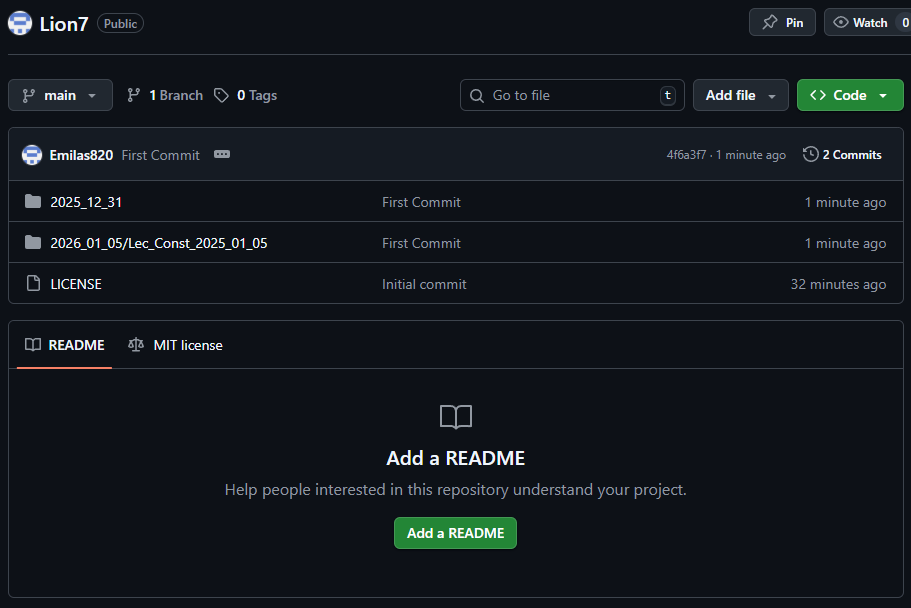
- Repository 생성
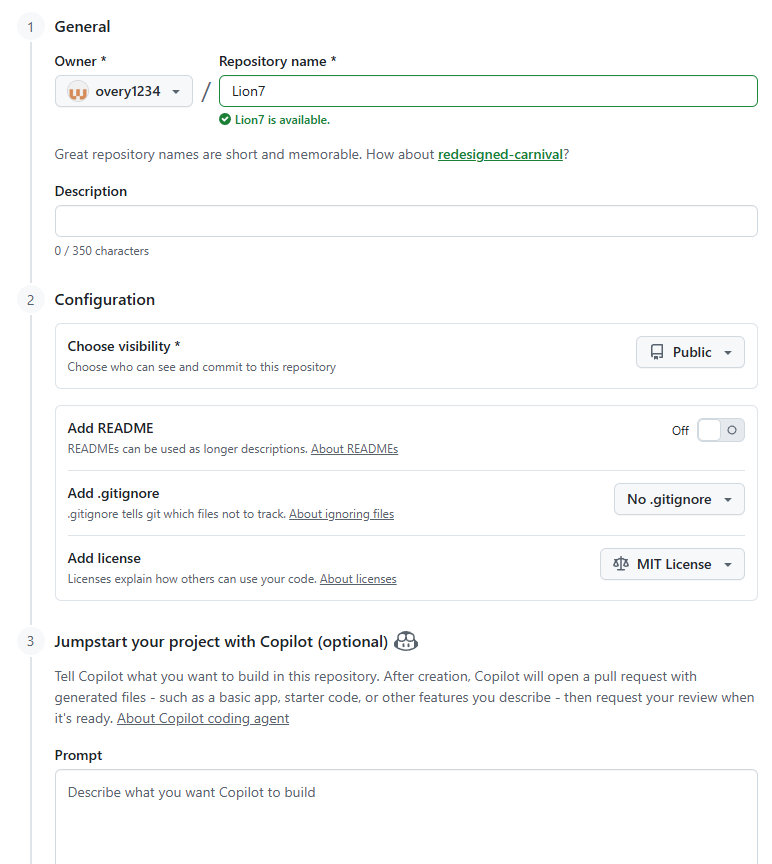
이름 설정은 필수. Choose visibility를 통해 공개 여부를 결정할 수 있다. (생성 이후 Setting에서 변경 가능)
License를 설정할 수 있는데, 어차피 공부 단계이므로 가장 쿨한 라이센스인 MIT License를 채택한다.
| 라이선스 | 소스 코드 공개 의무 | 상업적 이용 | 설명 |
| MIT | X | O | 저작권 표시만 하면 어디든 사용 가능. |
| Apache 2.0 | X | O | MIT와 비슷하지만, 특허권 관련 보호 조항이 포함되어 기업에서 선호함. |
| GNU GPL v3 | O | O | 코드를 수정해서 배포할 경우, 전체 소스 코드를 반드시 공개해야 함. |
대충 이런 게 있다고 함.

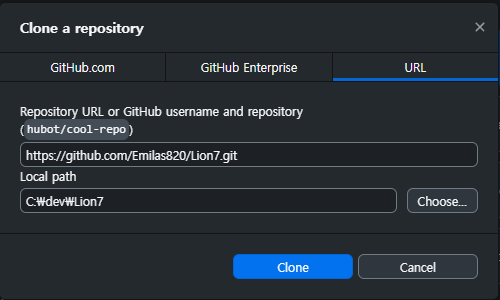
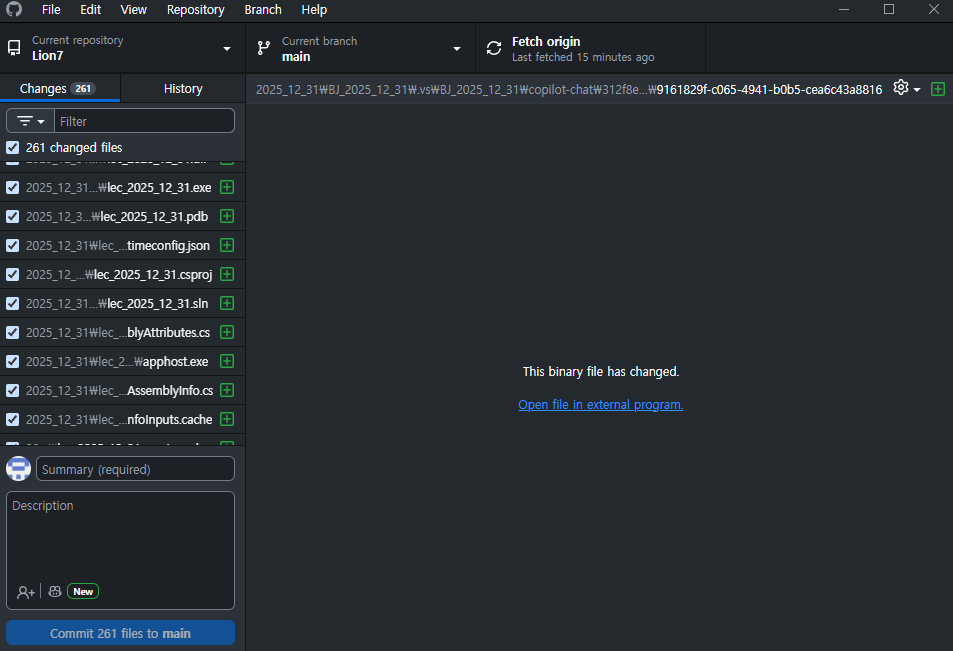
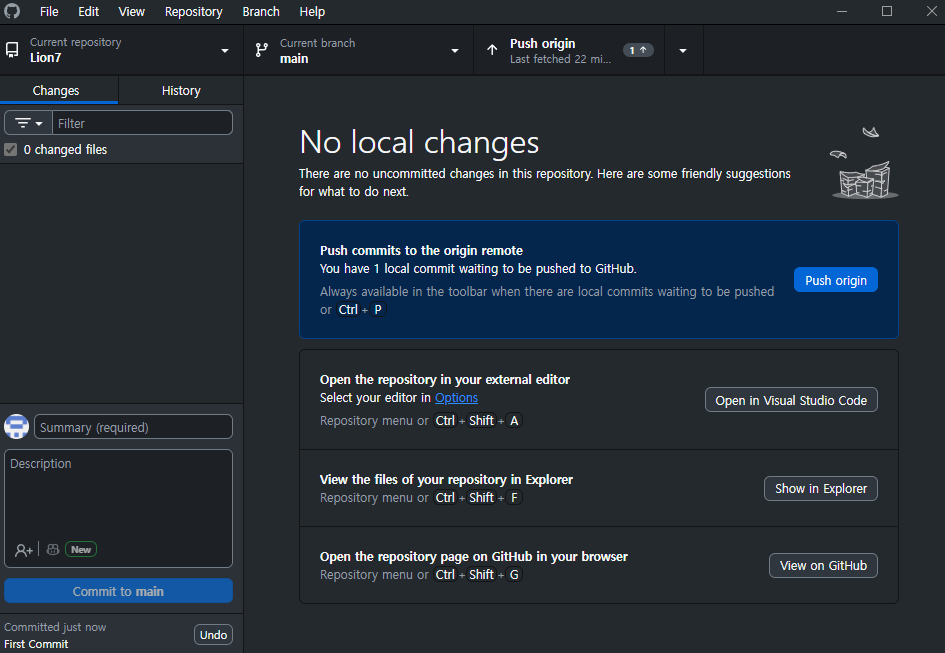
1.2. GitHub Desktop 설치
GitHub Desktop 설치 - GitHub 문서
Download GitHub Desktop You can install GitHub Desktop on supported operating systems, which currently include macOS 12.0 or later and Windows 10 64-bit or later. If you have a GitHub or GitHub Enterprise account, you can connect your account to GitHub Des
docs.github.com
해당 사이트에서 다운한 후 회원가입/로그인

2. C# 기초 콘솔 - (6) 상수 사용하기
변수 선언할 때, 앞에 "const"를 붙이면 상수, 즉 변경하지 못하는 변수를 만들 수 있다.
당연히 선언 후 변경이 불가이기 때문에, 선언과 동시에 값을 넣어준다.
Tip) 상수는 대문자 스네이크 케이스(C#에서는 잘 안씀)로 작성하는 것이 관례이다.
(ex - MAXHP or MAX_HP, vs maxHp 카멜 케이스 - 일반변수나 함수명 / MaxHp 파스칼 케이스 - 클래스, 메서드명 / is, has, can 접두사 + 카멜 - bool 변수)
뭐든 일관성을 유지하는 것이 중요.
<실습 코드>
using System;
using System.Collections.Generic;
using System.Linq;
using System.Text;
using System.Threading.Tasks;

namespace Lec_Const_2025_01_05
{
    internal class ConstTest
    {
        static void Main(string[] args)
        {
            // Lecture 1: 상수 사용하기.

            // 상수: 값을 변경할 수 없는 변수.
            const double Pi = 3.14159; //상수 Pi선언 및 초기화
            const int MacxScore = 100; //정수형 상수 선언

            // 출력
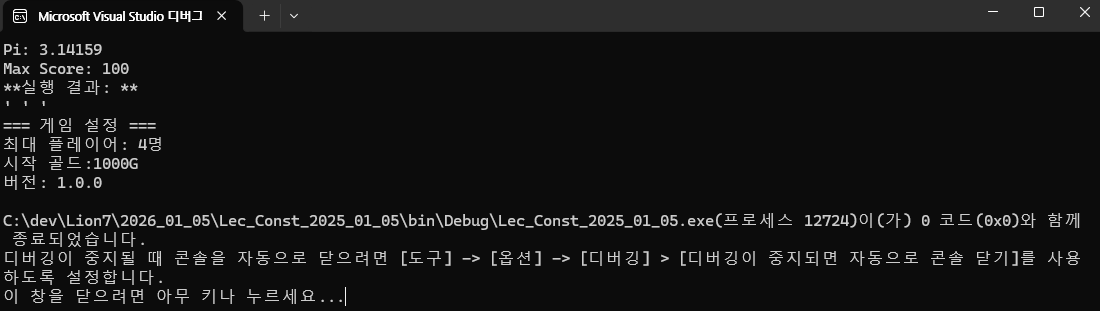
            Console.WriteLine("Pi: " + Pi); // 출력: Pi: 3.14159
            Console.WriteLine("Max Score: " + MacxScore); // 출력: Max Score: 100

            // Pi = 3.14; // 오류: 상수는 값을 변경할 수 없음

            // Mission 1: 상수를 통해 화면 구성
            // Tip: 상수는 대문자로 작성하는 것이 관례.
            const int MAX_PLAYER = 4; //최대 플레이어 수 상수
            const int GOLD = 1000; //시작 골드 상수
            const string CURRENT_VERSION = "1.0.0"; //게임 버전 상수

            Console.WriteLine("**실행 결과: **");
            Console.WriteLine("' ' '");
            Console.WriteLine("=== 게임 설정 ===");
            Console.WriteLine("최대 플레이어: " + MAX_PLAYER + "명");
            Console.WriteLine("시작 골드:" + GOLD + "G");
            Console.WriteLine("버전: " + CURRENT_VERSION);

        }
    }
}
* 참고 - 상수에 값을 대입하려고 하면 오류를 뱉는다.

<출력 결과>
2. C#에서 숫자 데이터 형식을 사용 - (1) 숫자 데이터 형식
<실습 코드>
using System;
using System.Collections.Generic;
using System.Linq;
using System.Text;
using System.Threading.Tasks;

namespace Lec_2026_01_05_DataType
{
    internal class DataTypeTest
    {
        static void Main(string[] args)
        {
            // Lecture 2: 숫자 데이터 형식 - 정수와 실수를 다룰 때 사용하는 다양한 타입
            int integerNum = 10; // 정수 데이터
            float floatNum = 3.14f; // 단정밀도 실수, f 접미사 필요
            double doubleNum = 3.14159; // 배정밀도 실수

            Console.WriteLine(integerNum); // 출력: 10
            Console.WriteLine(floatNum);   // 출력: 3.14
            Console.WriteLine(doubleNum); // 출력: 3.14159

            // Mission 2: 다양한 타입을 활용하여 내용 출력
            byte level = 50;                // 레벨 (0~255면 충분)
            short attack = 1500;            // 공격력
            int gold = 1234567;             // 소지금
            long experience = 99999999L;    // long 타입에는 L 접미사 사용

            Console.WriteLine("=== 캐릭터 정보 ===");
            Console.WriteLine($"레벨: {level}");
            Console.WriteLine($"공격력: {attack}");
            Console.WriteLine($"소지금: {gold:N0}골드"); // 천 단위 구분기호 포함
            Console.WriteLine($"경험치: {experience:N0}");

            //타입별 최대값 확인
            Console.WriteLine("\n===타입별 최대값 ===");
            Console.WriteLine($"byte 최대값: {byte.MaxValue}");
            Console.WriteLine($"short 최대값: {short.MaxValue}");
            Console.WriteLine($"int 최대값: {int.MaxValue}");
            Console.WriteLine($"long 최대값: {long.MaxValue}");

        }
    }
}
* 참고 - 천 단위 구분기호 표기하는 법
(변수명):N0 (O가 아니라 숫자 0임)
* 참고 - 이런 단위도 있다
| 타입 | 크기 | 범위 | 용도 |
| byte | 1byte | 0 ~ 255 | 작은 양의 정수 |
| sbyte | 1byte | -128 ~ -127 | 작은 정수 |
| short | 2byte | -32,768 ~ 32,767 | 작은 정수 |
| ushort | 2byte | 0 ~ 65,535 | 작은 양의 정수 |
| int | 4byte | -2,147,483,648 ~ 2,147,483,647 | 큰 정수, 가장 많이 사용 |
| uint | 4byte | 0 ~ 4,294,967,295 | 큰 양의 정수 |
| long | 8byte | -9,223,372,036,854,775,808 ~ 9,223,372,036,854,775,807 | 매우 큰 정수 |
| ulong | 8byte | 0 ~ 18,446,744,073,709,551,615 | 매우 큰 양의 정수 |
범위 계산법: byte = 8 bit, n byte라고 했을 때 2^(n*8)만큼의 숫자를 담을 수 있음.
양수, 음수 범위 확인: s(Signed)는 양/음수 모두 포함, u(Unsigned)는 양수만
<출력 결과>

3. C#에서 숫자 데이터 형식을 사용 - (2) 정수 데이터 형식
<실습 코드>
using System;
using System.Collections.Generic;
using System.Linq;
using System.Text;
using System.Threading.Tasks;

namespace Lec_2026_01_05_Integer
{
    internal class IntegerTest
    {
        static void Main(string[] args)
        {
            // Lecture 3: 정수 데이터 형식: 소수점이 없는 숫자를 표현
            int intValue = -100;            // 4 bytes (32 bits)
            long longValue = 100000L;       // 8 bytes (64 bits)

            Console.WriteLine(intValue);    // 출력: -100
            Console.WriteLine(longValue);   // 출력: 100000
        }
    }
}
<출력 결과>

4. C#에서 숫자 데이터 형식을 사용 - (3) 부호 있는 정수 데이터 형식
<실습 코드>
using System;
using System.Collections.Generic;
using System.Linq;
using System.Text;
using System.Threading.Tasks;

namespace Lec_2026_01_05_SignedInterger
{
    internal class SignedIntergerTest
    {
        static void Main(string[] args)
        {
            // Lecture 4: 부호 있는 정수 - 음수와 양수를 모두 표현 가능
            sbyte signedByte = -50;         //1byte
            short signedShort = -32000;     //2byte
            int signedInt = -2000000000;    //4byte

            Console.WriteLine(signedByte);  // 출력: -50
            Console.WriteLine(signedShort); // 출력: -32000
            Console.WriteLine(signedInt);   // 출력: -2000000000
        }
    }
}
<출력 결과>

5. C#에서 숫자 데이터 형식을 사용 - (4) 부호 없는 정수 데이터 형식
<실습 코드>
using System;
using System.Collections.Generic;
using System.Linq;
using System.Text;
using System.Threading.Tasks;

namespace Lec_2026_01_05_UnsignedInterger
{
    internal class UnsignedIntergerTest
    {
        static void Main(string[] args)
        {
            // Lecture 5: 부호가 없는 정수: 0 이상의 정수만 표현 가능
            byte unsignedByte = 255;            // 1byte
            ushort unsignedShort = 65000;       // 2byte
            uint unsignedInt = 4000000000;      // 4byte

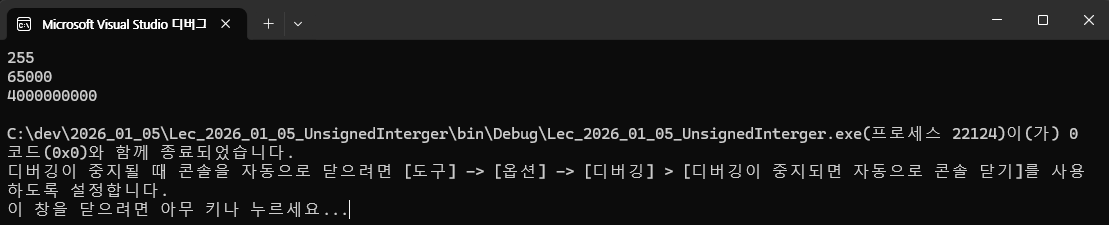
            Console.WriteLine(unsignedByte);    // 출력: 255
            Console.WriteLine(unsignedShort);   // 출력: 65000
            Console.WriteLine(unsignedInt);     // 출력: 4000000000
        }
    }
}
<출력 결과>
6. C#에서 숫자 데이터 형식을 사용 - (5) 실수 데이터 형식
<실습 코드>
using System;
using System.Collections.Generic;
using System.Linq;
using System.Text;
using System.Threading.Tasks;

namespace Lec_2026_01_05_RealNumber
{
    internal class RealNumberTest
    {
        static void Main(string[] args)
        {
            // Lecture 6: 실수 데이터 형식 - 소수점을 포함한 숫자를 표현
            float singlePrecision = 3.14f;                              // 단정밀도 실수 4byte, "f" 접미사 필요
            double doublePrecision = 3.1415926535;                      // 배정밀도 실수 8byte
            decimal highPrecision = 3.1415926535897932384626433833m;    // 고정밀도 실수 16byte, "m" 접미사 필요

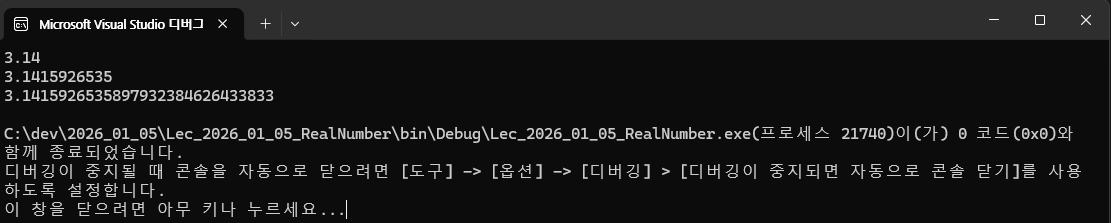
            Console.WriteLine(singlePrecision);                         // 출력 3.14
            Console.WriteLine(doublePrecision);                         // 출력 3.1415926535
            Console.WriteLine(highPrecision);                           // 출력 3.1415926535897932384626433833
        }
    }
}
<출력 결과>
7. C#에서 숫자 데이터 형식을 사용 - (6) 숫자 형식의 리터럴 값에 접미사 붙이기
<실습 코드>
using System;
using System.Collections.Generic;
using System.Linq;
using System.Text;
using System.Threading.Tasks;

namespace Lec_2026_01_05_NumLiteral
{
    internal class NumLiteralTest
    {
        static void Main(string[] args)
        {
            // Lecture 7: 접미사 사용 - 숫자의 데이터 형식을 명시
            int intValue = 100;                 // 기본 정수형
            long longValue = 100L;              // 정수형 접미사 L
            float floatValue = 3.14f;           // 기본 실수형 접미사 f
            double doubleValue = 3.14;          // 실수형 접미사
            decimal decimalValue = 3.14m;       // 실수형 접미사 m

            Console.WriteLine(intValue);        // 출력 100
            Console.WriteLine(longValue);       // 출력 100
            Console.WriteLine(floatValue);      // 출력 3.14
            Console.WriteLine(doubleValue);     // 출력 3.14
            Console.WriteLine(decimalValue);    // 출력 3.14
        }
    }
}
<출력 결과>

8. 숫자 이외의 데이터 형식을 다루는 C# - (1) 문자 데이터 형식: char
<실습 코드>
using System;
using System.Collections.Generic;
using System.Linq;
using System.Text;
using System.Threading.Tasks;

namespace Lec_2026_01_05_Char
{
    internal class CharTest
    {
        static void Main(string[] args)
        {
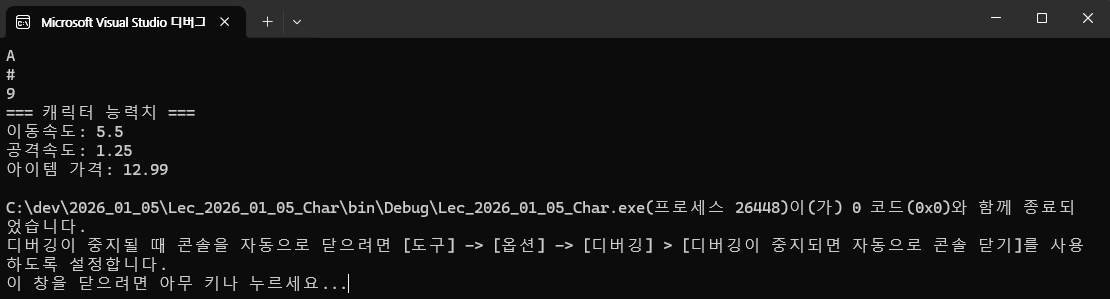
            // Lecture 8: char 형식 - 단일 문자를 표현
            char letter = 'A';          // 문자 'A' 저장
            char symbol = '#';          // 특수 기호 저장
            char number = '9';          // 숫자 형태의 문자 저장 (문자 '9', 숫자 9 아님)

            Console.WriteLine(letter);  // 출력 A
            Console.WriteLine(symbol);  // 출력 #
            Console.WriteLine(number);  // 출력 9

            // Mission 8: 실수 타입 연습

            float SPD = 5.5f;
            double ASD = 1.25;
            decimal Cost = 12.99m;

            Console.WriteLine("=== 캐릭터 능력치 ===");
            Console.WriteLine($"이동속도: {SPD}");
            Console.WriteLine($"공격속도: {ASD}");
            Console.WriteLine($"아이템 가격: {Cost}");
        }
    }
}
* 참고 - char은 문자 하나만 가능하다.
- 문자를 한 개 이상 쓰면 오류.
<출력 결과>
9. 숫자 이외의 데이터 형식을 다루는 C# - (2) 문자열 데이터 형식: string
<실습 코드>
using System;
using System.Collections.Generic;
using System.Linq;
using System.Text;
using System.Threading.Tasks;

namespace Lec_2026_01_05_String
{
    internal class StringTest
    {
        static void Main(string[] args)
        {
            // Lecture 9: String 형식 - 여러 문자를 저장
            string greeting = "Hello, World!";  // 문자열 저장
            string name = "Alice";              // 이름 저장

            Console.WriteLine(greeting);        // 출력 Hello, World!
            Console.WriteLine(name);            // 출력 Alice


            // Mission 9_1: 자료형 지정 후 출력

            char grade = 'A';
            char symbol = '★';
            char number = '9';
            string playerName = "홍길동";
            string welcomeMessage = "게임에 오신 것을 환영합니다!";
            string emptystring = "";

            Console.WriteLine("** 실행 결과: **");
            Console.WriteLine("=== RPG 게임 ===");
            Console.WriteLine($"플레이어: {playerName}");
            Console.WriteLine($"등급: {grade} 등급 {symbol}");
            Console.WriteLine(welcomeMessage);

            // Mission 9_2: 숫자9, 문자 9

            // 숫자 9
            int number9 = 9;

            // 문자 '9'
            char character9 = '9';

            Console.WriteLine("=== 숫자 vs 문자 ===");
            Console.WriteLine($"숫자 9: {number9}");
            Console.WriteLine($"문자 '9': {character9}");

            int num = 9;          // 숫자 9
            char ch = '9';        // 문자 '9'

            Console.WriteLine("=== 값과 타입 비교 ===");
            Console.WriteLine($"숫자 변수: 값 = {num}, 타입 = {num.GetType()}");   // GetType() 메서드로 타입 확인
            Console.WriteLine($"문자 변수: 값 = {ch}, 타입 = {ch.GetType()}");     // GetType() 메서드로 타입 확인

            Console.WriteLine("\n=== 내부 저장 값(정수형 변환) 비교 ===");
            Console.WriteLine($"숫자 9의 정수값: {num}");
            // char를 int로 형변환하면 아스키 코드값이 나옵니다.
            Console.WriteLine($"문자 '9'의 실제 정수값(ASCII): {(int)ch}");        // {(변환하고 싶은 자료형)변수명}

            Console.WriteLine("\n=== 연산 결과 비교 ===");
            Console.WriteLine($"숫자 9 + 1 = {num + 1}");                                         // 출력 10
            Console.WriteLine($"문자 '9' + 1 = {(int)(ch + 1)} (문자 '9' 다음 문자의 코드값)");     // 출력 58
            Console.WriteLine($"문자 '9' + 1을 다시 문자로: {(char)(ch + 1)})");                   // 코드 58은 ':'
        }
    }
}
* 참고 - 숫자 9, 문자 '9'의 차이
- 숫자 9: Int32 타입의 9
- 문자 '9': Char 타입의 57 (ASCII)
ASCII코드 또한 숫자이므로, 정수 변환 시 숫자 연산도 가능하다.
<출력 결과>

* 참고 - 따옴표 구분
char: 단일 문자 하나 (작은따옴표 '')
string: 여러 문자의 조합 (큰따옴표 "")
10. 숫자 이외의 데이터 형식을 다루는 C# - (3) 논리 데이터 형식 bool
<실습 코드>
using System;
using System.Collections.Generic;
using System.Linq;
using System.Runtime.InteropServices;
using System.Text;
using System.Threading.Tasks;

namespace Lec_2026_01_05_Boolean
{
    internal class BooleanTest
    {
        static void Main(string[] args)
        {
            // Lecture 10: bool 형식 - 참 또는 거짓
            bool isRunning = true;
            bool isFinished = false;

            Console.WriteLine(isRunning);
            Console.WriteLine(isFinished);

            // Mission 10: bool 타입을 활용하여 플레이어 상태 출력

            bool isPlaying = true;
            bool isPaused = false;
            bool isHaveKey = false;
            bool isDoorOpen = false;
            bool isPlayerAlive = true;

            int HP = 80;
            bool isHealthOK = HP >= 50;
            bool isDanger = HP < 50;


            Console.WriteLine("=== 게임 상태 ===");
            Console.WriteLine($"게임 실행 중: {isPlaying}");
            Console.WriteLine($"일시정지: {isPaused}");
            Console.WriteLine($"열쇠 소지: {isHaveKey}");
            Console.WriteLine($"문 열림: {isDoorOpen}");
            Console.WriteLine($"플레이어 생존: {isPlayerAlive}");

            Console.WriteLine("\n=== 캐릭터 상태 ===");
            Console.WriteLine($"체력: {HP}");
            Console.WriteLine($"건강 상태: {isHealthOK}");
            Console.WriteLine($"위험 상태: {isDanger}");

            // 아이템 소지 여부
            bool hasWeapon = true;
            bool hasArmor = false;
            bool hasPotion = true;

            Console.WriteLine("\n=== 인벤토리 ===");
            Console.WriteLine($"무기 보유: {(hasWeapon ? "있음" : "없음")}");
            Console.WriteLine($"방어구 보유: {(hasArmor ? "있음" : "없음")}");
            Console.WriteLine($"포션 보유: {(hasPotion ? "있음" : "없음")}");
            // {(변수명) ? "true인 경우 출력" : "false인 경우 출력"}

        }
    }
}
* 참고 - Bool과 조건식
- 직접적으로 true, false값을 넣는 게 아닌, 조건식을 넣는 것도 가능하다.
<출력 결과>

11. 숫자 이외의 데이터 형식을 다루는 C# - (4) 변하지 않는 값: 상수
2번 항목 참고. 내용 동일.
12. 숫자 이외의 데이터 형식을 다루는 C# - (5) 닷넷 데이터 형식
<실습 코드>
using System;
using System.Collections.Generic;
using System.Linq;
using System.Text;
using System.Threading.Tasks;

namespace Lec_2026_01_05_.Net
{
    internal class DotNetTest
    {
        static void Main(string[] args)
        {
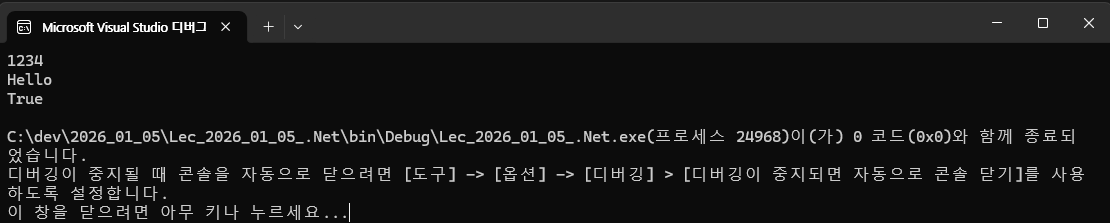
            System.Int32 number = 1234;         //int의 .NET 형식, System.Int32를 int로 간략하게 표현 가능
            System.String text = "Hello";       //string의 .NET 형식, System.String을 string으로 간략하게 표현 가능
            System.Boolean flag = true;         //bool의 .NET 형식, System.Boolean을 bool로 간략하게 표현 가능

            System.Console.WriteLine(number);   //using System 생략 가능 (상단에 선언함)
            Console.WriteLine(text);
            Console.WriteLine(flag);
        }
    }
}
<출력 결과>
13. 숫자 이외의 데이터 형식을 다루는 C# - (6) 래퍼 형식
기본 데이터 형식을 객체처럼 다루는 방법.
<실습 코드>
using System;
using System.Collections.Generic;
using System.Linq;
using System.Text;
using System.Threading.Tasks;

namespace Lec_2026_01_05_Wrapper
{
    internal class WrapperTest
    {
        static void Main(string[] args)
        {

            // Lecture 12: 래퍼 형식은 기본 데이터 형식을 클래스 형태로 감싸 객체 취급을 할 수 있게 함
            int number = 123;
            string numberAsString = number.ToString();  // 정수를 문자열로 변환

            //bool 래퍼 형식의 메서드 활용
            bool flag = true;
            string flagAsString = flag.ToString();      // 논리값을 문자열로 변환

            Console.WriteLine(numberAsString);          // 출력 "123"
            Console.WriteLine(flagAsString);            // 출력 "True"

        }
    }
}
* 참고 - 래퍼 형식은 어디에 쓰나요?
1) Null 값 오류를 막거나 Null을 값 자체로 사용하고 싶을 때
- 설문조사 데이터에서 '나이' 항목이 비어있을 때, 0으로 저장하면 실제 0살인지 응답을 안 한 건지 알 수 없음.
- int? age = null;( age값이 얼마인지 모른다. ) 처럼 선언하면 "값 없음" 상태를 명확히 표현할 수 있다. vs ( int age = 0;, age값이 0이다. )
- int? age = null; 는 Nullable<int> age = new Nullable<int>();와 같다. (= Nullable<int>라는 래퍼 구조체가 int를 감싸서 HasValue라는 속성으로 null 여부를 관리한다)
2) 특정 리터럴을 타입을 변경하여 참조하고 싶을 때 (실습코드에 보여주는 경우)
- int, string, bool 등 서로 다른 타입들을 하나의 리스트에 넣고 싶을 때.
- 모든 타입의 조상인 object (래퍼의 정점) 타입으로 묶어서 참조.
- 예: object[] stuff = new object[] { 1, "Hello", true };
- 타입이 다른 것들이 한 객체에 들어가는 경우, 타입마다 할당된 메모리 사이즈가 달라 가끔 참조 오류 날 때도 있다고 함.
- 만약 데이터 타입이 다른 걸 한 객체에 때려넣고 싶은 경우 포장지로 분리해두는 거라고 보면 될듯.
3) 변수 자체를 object로 다루고 싶을 때
- 어떤 메서드가 인자로 object를 요구하거나, 데이터를 힙 메모리로 옮겨서 다른 곳에서도 참조하게 만들고 싶을 때.
- 이때 int를 object라는 래핑함.
- 예: JSON
<출력 결과>

14. 오늘의 미션1 - 딜레이 주기 (콘솔에서만 사용) & 콘솔 창 초기화
using System.Threading.Tasks;
using System.Threading;
을 추가하고, Tread.Sleep(딜레이 시간);으로 딜레이를 줄 수 있다.
<실습 코드>
using System;
using System.Collections.Generic;
using System.Linq;
using System.Text;
using System.Threading.Tasks;
using System.Threading;

namespace Lec_2026_01_05_Mission
{
    internal class Mission_2026_01_05
    {
        static void Main(string[] args)
        {
            // Mssion 1: 딜레이 주기
            // Therad.Sleep(): 괄호 안의 시간만큼 시스템을 정지 시키는 함수.
            // 참고 - 1000 = 1sec

            Console.Write("안");
            Thread.Sleep(1000);     // 1sec sleep
            Console.Write("녕");
            Thread.Sleep(1000);     // 1sec sleep
            Console.Write("하");
            Thread.Sleep(1000);     // 1sec sleep
            Console.Write("세");
            Thread.Sleep(1000);     // 1sec sleep
            Console.Write("요");
            Thread.Sleep(1000);     // 1sec sleep
            Console.Write(".");
            Thread.Sleep(1000);     // 1sec sleep
            Console.Write(".");
            Thread.Sleep(1000);     // 1sec sleep
            Console.Write(".");
            Thread.Sleep(1000);     // 1sec sleep

            Thread.Sleep(2000);     // 2sec sleep
            Console.Clear();        // Console 창 클리어


        }
    }
}
<출력 결과>
동영상 서비스가 종료되어 해당 콘텐츠를 재생할 수 없습니다.
음침하게 인사할 수 있게 되었다.
14. 오늘의 미션2 - 저번 시간에 구현한 UI 애니메이션 적용
<실습 코드>
using System;
using System.Collections.Generic;
using System.Linq;
using System.Runtime.InteropServices;
using System.Text;
using System.Threading;
using System.Threading.Tasks;

namespace Lec_2026_01_05_Mission
{
    internal class Mission_2026_01_05
    {
        static void Main(string[] args)
        {
            // Mission 2: 저번 시간에 만든 UI에 애니메이션 적용하기

            string char1 = "가나";
            string char2 = "다라";
            string char3 = "마바";
            string char4 = "사아";
            string char5 = "자차";
            string char6 = "카타";
            string char7 = "파하";
            string char8 = "기니";
            string char9 = "디리";
            string char10 = "미비";
            string char11 = "시이";

            Thread.Sleep(3000);

            Console.WriteLine("┏━━━━━━━┓┏━━━━━━━┓┏━━━━━━━┓┏━━━━━━━┓");
            Console.WriteLine("┃       ┃┃       ┃┃       ┃┃       ┃");
            Console.WriteLine("┃       ┃┃       ┃┃       ┃┃       ┃");
            Console.WriteLine("┃       ┃┃       ┃┃       ┃┃       ┃");
            Console.WriteLine("┗━━━━━━━┛┗━━━━━━━┛┗━━━━━━━┛┗━━━━━━━┛");
            Console.WriteLine($"   {char1}     {char2}     {char3}     {char4}");

            Thread.Sleep(100);

            Console.WriteLine("┏━━━━━━━┓┏━━━━━━━┓┏━━━━━━━┓┏━━━━━━━┓");
            Console.WriteLine("┃       ┃┃       ┃┃       ┃┃       ┃");
            Console.WriteLine("┃       ┃┃       ┃┃       ┃┃       ┃");
            Console.WriteLine("┃       ┃┃       ┃┃       ┃┃       ┃");
            Console.WriteLine("┗━━━━━━━┛┗━━━━━━━┛┗━━━━━━━┛┗━━━━━━━┛");
            Console.WriteLine($"   {char5}     {char6}     {char7}     {char8}");

            Thread.Sleep(100);

            Console.WriteLine("┏━━━━━━━┓┏━━━━━━━┓┏━━━━━━━┓");
            Console.WriteLine("┃       ┃┃       ┃┃       ┃");
            Console.WriteLine("┃       ┃┃       ┃┃       ┃");
            Console.WriteLine("┃       ┃┃       ┃┃       ┃");
            Console.WriteLine("┗━━━━━━━┛┗━━━━━━━┛┗━━━━━━━┛");
            Console.WriteLine($"   {char9}     {char10}     {char11}");

            Thread.Sleep(100);

            Console.WriteLine("┏━━┓┏━━━━━━━━━━━━━━━━━━━━━━━━━━┓┏━━┓");
            Console.WriteLine("┃▼ ┃┃ 기본                     ┃┃↑↓┃");
            Console.WriteLine("┗━━┛┗━━━━━━━━━━━━━━━━━━━━━━━━━━┛┗━━┛");

            Thread.Sleep(1000);
            Move(18);

            Console.WriteLine("┏━━┓┏━━━━━━━━━━━━━━━━━━━━━━━━━━┓┏━━┓");
            Console.WriteLine("┃▽ ┃┃ 기본                     ┃┃↑↓┃");
            Console.WriteLine("┗━━┛┗━━━━━━━━━━━━━━━━━━━━━━━━━━┛┗━━┛");

            Thread.Sleep(1000);
            Move(18);

            Console.WriteLine("┏━━┓┏━━━━━━━━━━━━━━━━━━━━━━━━━━┓┏━━┓");
            Console.WriteLine("┃△ ┃┃ 기본                     ┃┃↑↓┃");
            Console.WriteLine("┗━━┛┗━━━━━━━━━━━━━━━━━━━━━━━━━━┛┗━━┛");

            Thread.Sleep(1000);
            Move(18);

            Console.WriteLine("┏━━┓┏━━━━━━━━━━━━━━━━━━━━━━━━━━┓┏━━┓");
            Console.WriteLine("┃▲ ┃┃ 기본                     ┃┃↑↓┃");
            Console.WriteLine("┗━━┛┗━━━━━━━━━━━━━━━━━━━━━━━━━━┛┗━━┛");

            Thread.Sleep(100);
            Move(0);

            Console.WriteLine("┏━━━━━━━┓┏━━━━━━━┓┏━━━━━━━┓┏━━━━━━━┓");
            Console.WriteLine("┃       ┃┃       ┃┃       ┃┃       ┃");
            Console.WriteLine("┃       ┃┃       ┃┃       ┃┃       ┃");
            Console.WriteLine("┃       ┃┃       ┃┃       ┃┃       ┃");
            Console.WriteLine("┗━━━━━━━┛┗━━━━━━━┛┗━━━━━━━┛┗━━━━━━━┛");
            Console.WriteLine($"   {char11}     {char10}     {char9}     {char8}");

            Thread.Sleep(100);

            Console.WriteLine("┏━━━━━━━┓┏━━━━━━━┓┏━━━━━━━┓┏━━━━━━━┓");
            Console.WriteLine("┃       ┃┃       ┃┃       ┃┃       ┃");
            Console.WriteLine("┃       ┃┃       ┃┃       ┃┃       ┃");
            Console.WriteLine("┃       ┃┃       ┃┃       ┃┃       ┃");
            Console.WriteLine("┗━━━━━━━┛┗━━━━━━━┛┗━━━━━━━┛┗━━━━━━━┛");
            Console.WriteLine($"   {char7}     {char6}     {char5}     {char4}");

            Thread.Sleep(100);

            Console.WriteLine("┏━━━━━━━┓┏━━━━━━━┓┏━━━━━━━┓");
            Console.WriteLine("┃       ┃┃       ┃┃       ┃");
            Console.WriteLine("┃       ┃┃       ┃┃       ┃");
            Console.WriteLine("┃       ┃┃       ┃┃       ┃");
            Console.WriteLine("┗━━━━━━━┛┗━━━━━━━┛┗━━━━━━━┛");
            Console.WriteLine($"   {char3}     {char2}     {char1}");

            Thread.Sleep(100);

            Console.WriteLine("┏━━┓┏━━━━━━━━━━━━━━━━━━━━━━━━━━┓┏━━┓");
            Console.WriteLine("┃▲ ┃┃ 기본                     ┃┃↑↓┃");
            Console.WriteLine("┗━━┛┗━━━━━━━━━━━━━━━━━━━━━━━━━━┛┗━━┛");


        }
        static void Move(int y)
        {
            // 1. 커서를 해당 줄의 맨 앞으로 이동
            Console.SetCursorPosition(0, y);

            // 2. 현재 콘솔 가로 너비만큼 공백(' ')을 만들어서 출력
            // Console.WindowWidth는 현재 창의 가로 칸 수입니다.
            Console.Write(new string(' ', Console.WindowWidth));

            // 3. (옵션) 출력이 끝난 후 커서를 다시 해당 줄 맨 앞으로 되돌림
            Console.SetCursorPosition(0, y);
        }
    }
}
* 참조 - Sleep과 Clear
- Thread.Sleep(); : 괄호 안의 값만큼 시스템을 정지 시킨다.
- Console.Clear(); : 전체 콘솔 초기화
* 참조 - 커서 이동과 입력
- Console.SetCursorPosition(x, y); * 현재 콘솔창의 x, y위치로 커서 이동
- Console.Write(new string((입력할 내용), 작성 범위)); * Console.WindowWidth은 창의 넓이, new string()은 입력 내용을 범위만큼 반복하여 입력한다는 뜻.
<출력 결과>
동영상 서비스가 종료되어 해당 콘텐츠를 재생할 수 없습니다.
대충 배열 변경 애니메이션을 구현해 보았습니다.
===========================================================
GitHub Desktop을 활용하여 프로젝트를 Repository에 업로드할 수 있게 되었다 !
다양한 변수형을 알고 이를 용도에 맞게 사용할 수 있게 되었다 !
콘솔의 애니메이션을 넣을 수 있는 일부 기능을 알게 되었다 !